
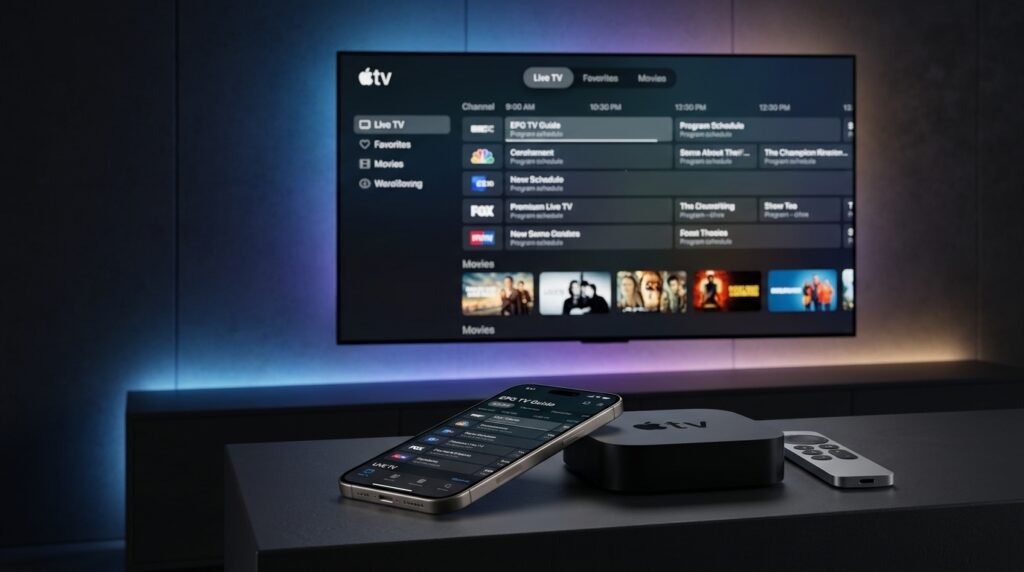
This IPTV iPhone guide makes setup simple. Watching IPTV on iPhone, iPad or Apple TV is one of the quickest setups there is: no sideloading, no developer settings. You install a player from the App Store, enter your SmartTVs login and you’re watching in about 5 minutes.
Before you start: you need an active SmartTVs login. No account yet? Start a free trial and we’ll send your details on WhatsApp.
What You Need for IPTV on iPhone
- An iPhone, iPad or Apple TV with App Store access
- Your SmartTVs username, password and server URL from WhatsApp
- Wi-Fi (5 GHz recommended for Apple TV)
How to Set Up IPTV on iPhone (Step by Step)
Follow each part in order. Every step has a real screenshot so you can check you are on the right screen.
Method 1: IPTV Smarters Pro (Recommended)
-
Open the App Store, search IPTV Smarters Pro and install it.
-
Open the app → choose Login with Xtream Codes API / Add User.

-
Enter Any Name, Username, Password and URL from SmartTVs WhatsApp, then tap ADD USER.
-
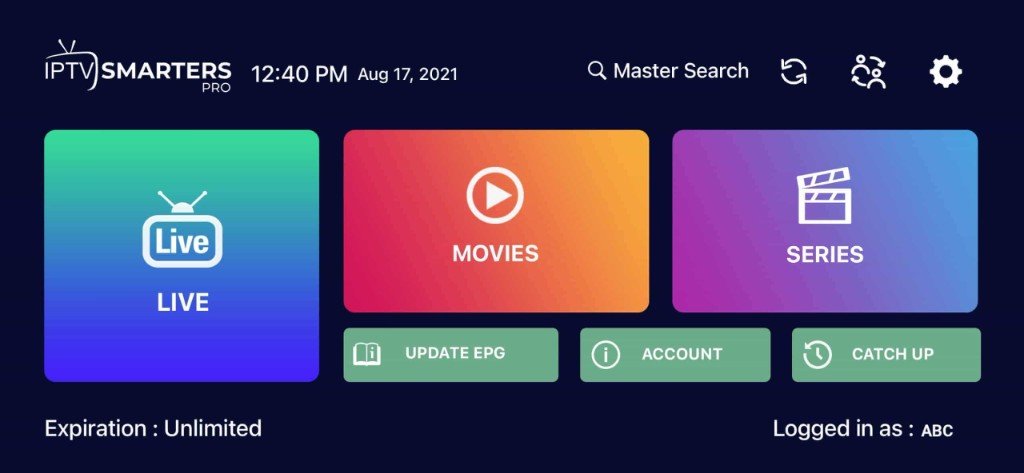
When the dashboard loads, open LIVE to start watching.
Method 2: iMPlayer / Meta Player
-
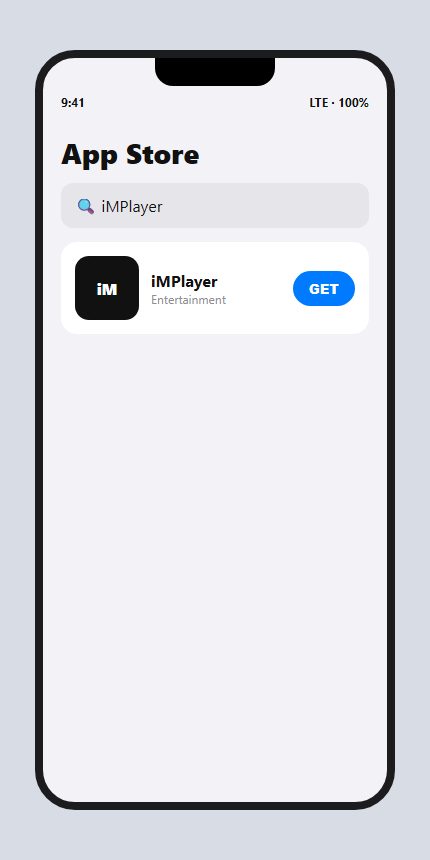
In the App Store, search iMPlayer (Meta Player style logo) if Smarters is not available in your region.

-
Install and open the app, then add an Xtream Codes playlist with the same SmartTVs credentials.

-
Open Live TV / Channels once the playlist loads.
Apple TV
-
On Apple TV, open the App Store and install IPTV Smarters Pro (or the app SmartTVs sends on WhatsApp).

-
Sign in with Xtream Codes (Name, Username, Password, URL) exactly like on iPhone.
-
Open Live once the playlist is ready.
IPTV on iPhone: Troubleshooting
| Problem | Fix |
|---|---|
| App not available in your region | Use the second method (iMPlayer) shown below. |
| Login fails | Paste the details from WhatsApp instead of typing. They are case-sensitive. |
| No picture on some channels | Switch the player’s video engine in settings, or try another channel group. |
| Apple TV buffering | Use Ethernet on Apple TV 4K or move closer to the router. |
Still stuck? Check your speed with Speedtest (about 15–20 Mbps for HD), read IPTV internet speed, or message our UK support on WhatsApp.
Tips for the Best IPTV on iPhone Experience
On Apple TV 4K, turn on “Match Frame Rate” in Settings → Video and Audio for smoother sport. See our Apple TV 4K UK guide.
Best IPTV iPhone and Apple TV Apps Compared
| App | Devices | Why use it |
|---|---|---|
| IPTV Smarters | iPhone, iPad, Apple TV | Simple menus, built-in TV guide, easy Xtream Codes login |
| iMPlayer | iPhone, iPad, Apple TV | Good alternative if Smarters is not available in your region |
Both apps are players only. The channels come from your SmartTVs login, so you can switch apps at any time without buying a new subscription.
IPTV iPhone Tips: Data, Casting and Battery
- Use Wi-Fi when you can. HD streaming uses roughly 1 to 3 GB per hour on mobile data.
- AirPlay to your TV: tap the AirPlay icon in the player to send the picture to an Apple TV or AirPlay-compatible smart TV.
- Save battery: lower the screen brightness and close other apps during long matches.
- Lock the orientation to landscape for a bigger picture.
Set Up IPTV on Other Devices
Watching on more than one screen? See IPTV on multiple devices and compare IPTV UK subscription plans.
IPTV iPhone: Frequently Asked Questions
Can I watch IPTV on my iPhone?
Yes. Install an IPTV player from the App Store, add your SmartTVs login and open Live TV.
What is the best IPTV app for Apple TV?
IPTV Smarters and iMPlayer are popular, easy choices. Availability can vary by region.
Do I need to jailbreak my iPhone?
No. Everything installs from the official App Store.
Can I use the same login on my iPhone and TV?
Yes, at the same time if your plan has 2 or more devices.
Need help with IPTV on iPhone?