
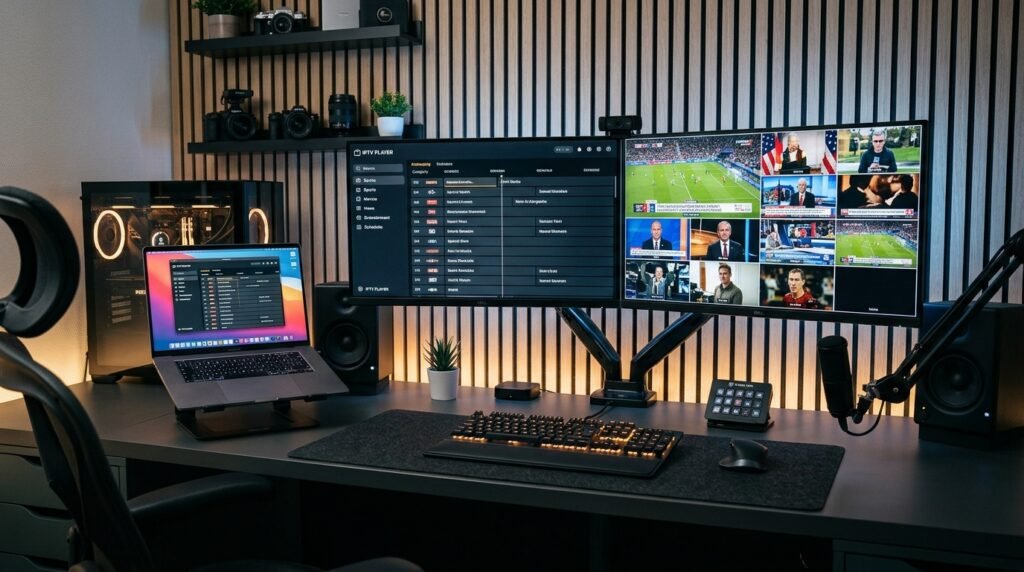
Your laptop or desktop is a great second screen. This IPTV for PC and Mac guide shows how to install a desktop player on Windows 10/11 or macOS, add your SmartTVs login, and watch live TV and films in minutes.
Before you start: you need an active SmartTVs login. No account yet? Start a free trial and we’ll send your details on WhatsApp.
What You Need for IPTV for PC
- A Windows 10/11 PC or a recent Mac
- Your SmartTVs login (or M3U link) from WhatsApp
- A wired connection for the best 4K quality
How to Set Up IPTV for PC (Step by Step)
Follow each part in order. Every step has a real screenshot so you can check you are on the right screen.
Method 1: IPTV Smarters Pro (Windows)
-
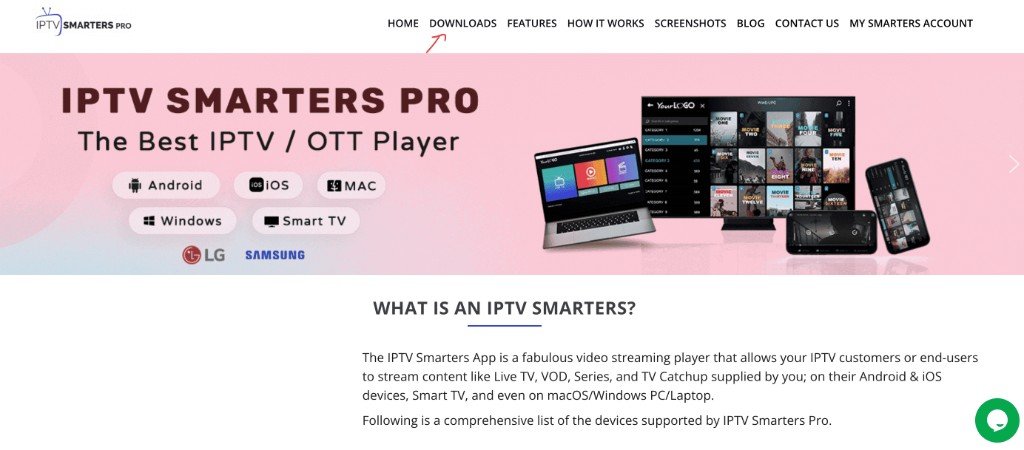
Open the IPTV Smarters site (or the link SmartTVs sends) and click DOWNLOADS.
-
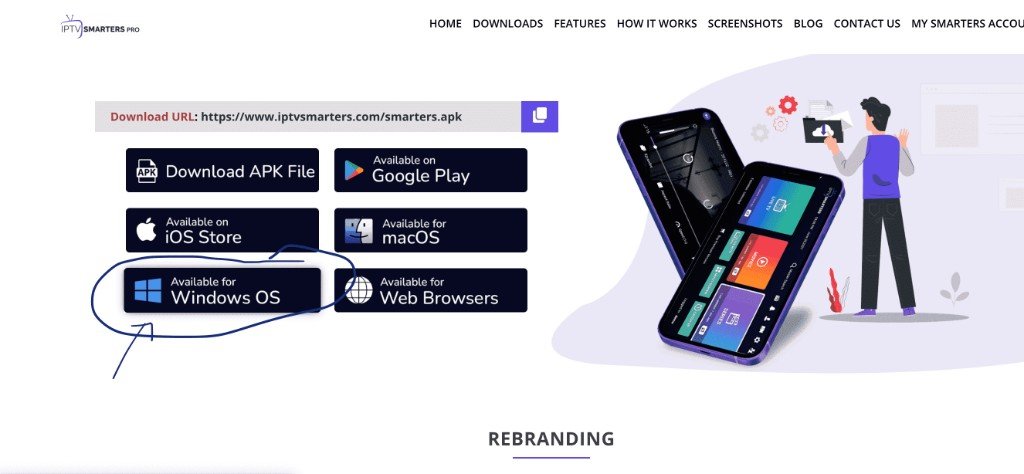
Choose Available for Windows OS (Mac users: use Available for macOS). Install the downloaded app.
-
Open IPTV Smarters → Add New User → Login with Xtream Codes API.

-
Enter Name, Username, Password and URL from WhatsApp, then Add User and open Live TV.
Method 2: MyIPTV Player (Windows alternative)
-
Install MyIPTV Player (Microsoft Store or the installer SmartTVs sends), open it, go to Settings, then tap Add new playlist and EPG source.

-
Under Remote channel List, enter any Name, paste the M3U / playlist URL from WhatsApp, then click Add remote list.

-
Back on Settings, select your playlist in the dropdown and click Refresh to load channels.

-
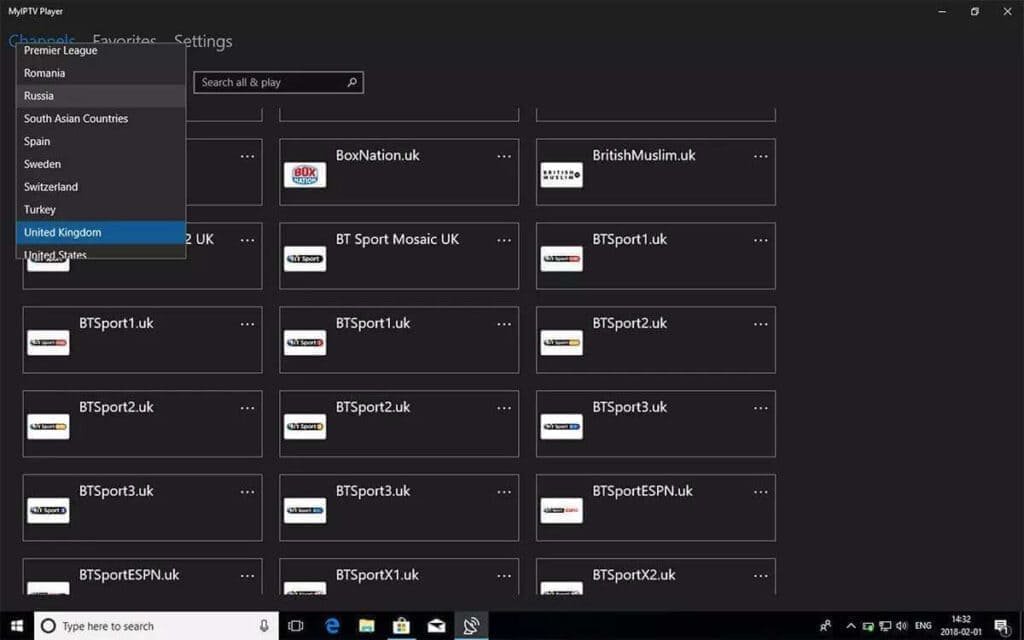
Open the Channels tab and pick a category (e.g. United Kingdom) to start watching.
Method 3: Mac
-
On the Smarters downloads page, choose Available for macOS (or use the .dmg SmartTVs sends on WhatsApp).
-
Open the .dmg and drag the app into Applications, then launch it (allow in Privacy & Security if asked).
-
Sign in with Xtream Codes (Name, Username, Password, URL) from WhatsApp — same details as Windows.
-
Open Live TV once channels are ready.
IPTV for PC: Troubleshooting
| Problem | Fix |
|---|---|
| Windows blocks the installer | Click “More info” → “Run anyway” only for the official installer. |
| Mac says the app can’t be opened | Go to System Settings → Privacy & Security and choose “Open Anyway”. |
| Video stutters | Close other heavy apps and use Ethernet. |
| No TV guide | Use the Xtream Codes login instead of M3U, then refresh EPG. |
Still stuck? Check your speed with Speedtest (about 15–20 Mbps for HD), read IPTV internet speed, or message our UK support on WhatsApp.
Tips for the Best IPTV for PC Experience
Want the picture on your big TV? Use HDMI from the laptop, or set up a dedicated device: see connect a laptop to a smart TV.
Set Up IPTV on Other Devices
Watching on more than one screen? See IPTV on multiple devices and compare IPTV UK subscription plans.
IPTV for PC: Frequently Asked Questions
Can I watch IPTV on my PC?
Yes. Install a desktop IPTV player such as IPTV Smarters or MyIPTV Player and add your SmartTVs login.
What is the best IPTV player for PC?
IPTV Smarters is the easiest; MyIPTV Player is a good Windows alternative.
Does IPTV work on Mac?
Yes. IPTV Smarters has a macOS version, and the steps are the same.
Is VLC good for IPTV?
VLC can play an M3U link, but it has no proper TV guide. A dedicated player is easier.
Need help with IPTV for PC?