
Your phone can be a full TV. This IPTV app Android guide shows how to install a player from Google Play, add your SmartTVs login and watch live TV and films on any Android phone or tablet (Android 5.0 or newer) in about 5 minutes.
Before you start: you need an active SmartTVs login. No account yet? Start a free trial and we’ll send your details on WhatsApp.
What You Need for IPTV app on Android
- An Android phone or tablet running Android 5.0+
- Your SmartTVs username, password and server URL from WhatsApp
- Wi-Fi for the best quality (mobile data works but uses a lot of data)
How to Set Up IPTV app on Android (Step by Step)
Follow each part in order. Every step has a real screenshot so you can check you are on the right screen.
Method 1: iMPlayer from Google Play (Recommended on phones)
-
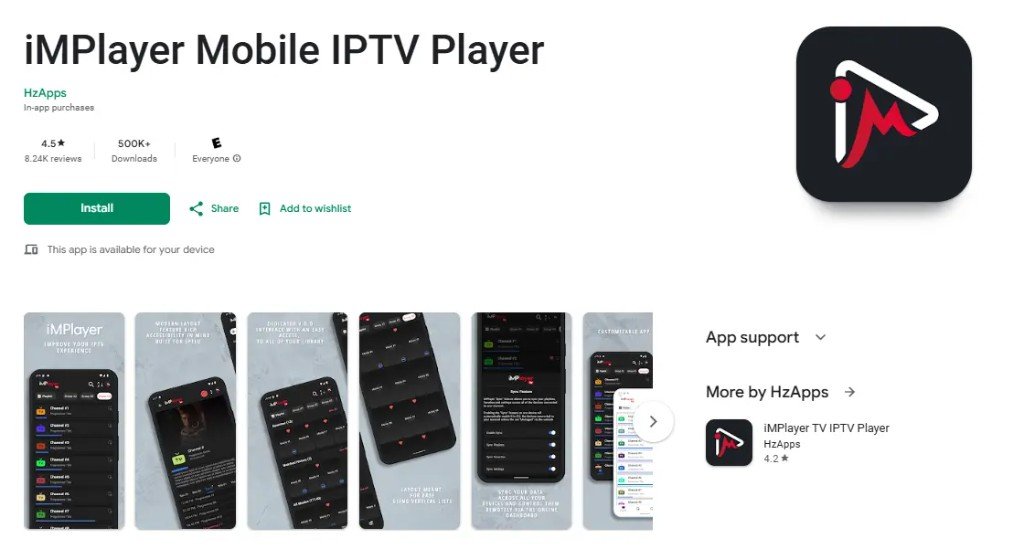
Open the Google Play Store, search iMPlayer Mobile IPTV Player, then tap Install.
-
When install finishes, open the app and choose Xtream Codes / Add playlist.
-
Enter Name, Username, Password and Server URL from SmartTVs WhatsApp, then Save / Login.

-
Open Live TV and start watching. Rotate to landscape for a bigger picture.

Method 2: TiviMate (Play Store or APK)
-
Try Google Play first: search TiviMate IPTV Player and tap Install / Installer if your device is supported.

-
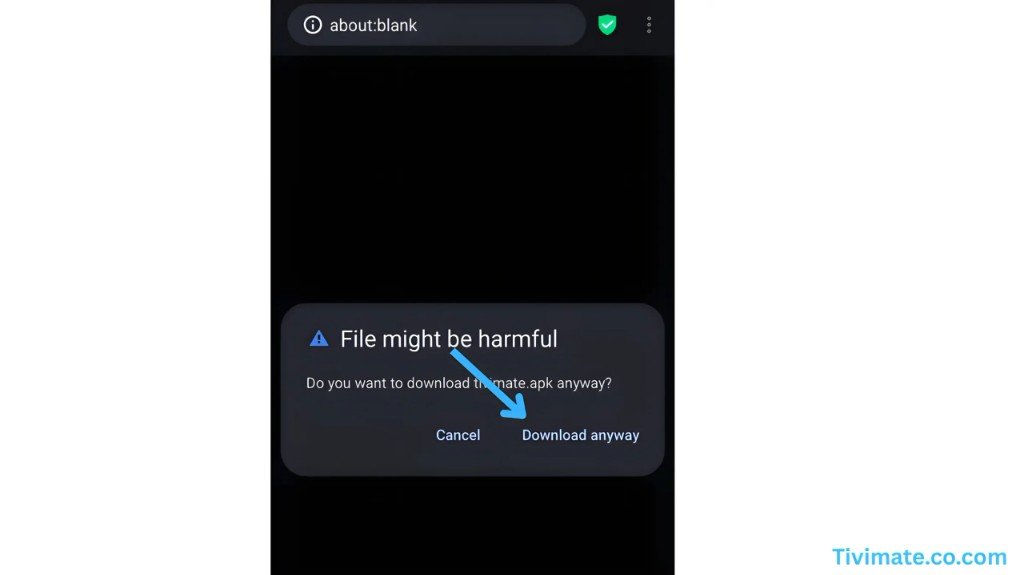
If Play Store blocks it, open the APK link from WhatsApp. When the browser warns File might be harmful, tap Download anyway.
-
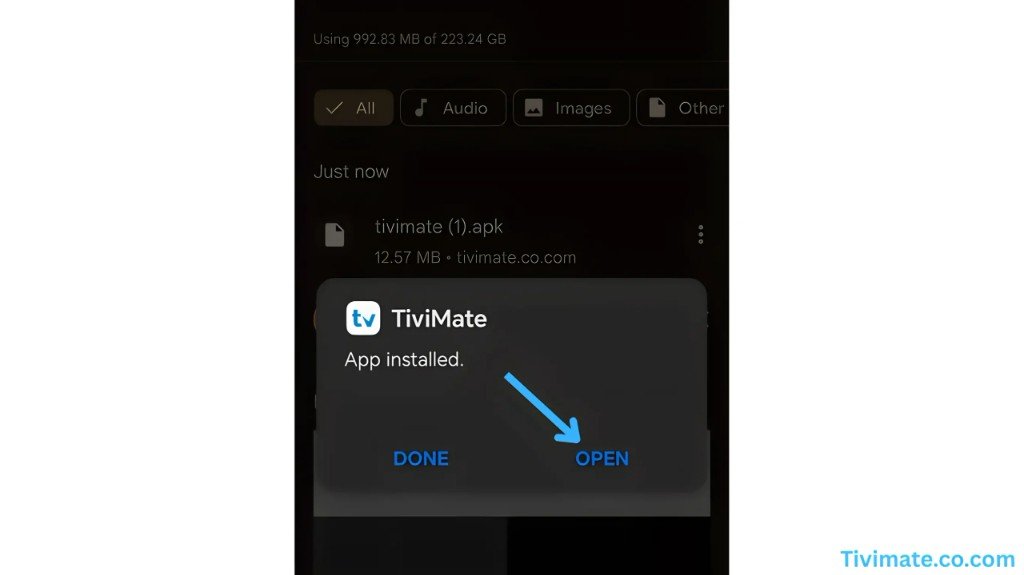
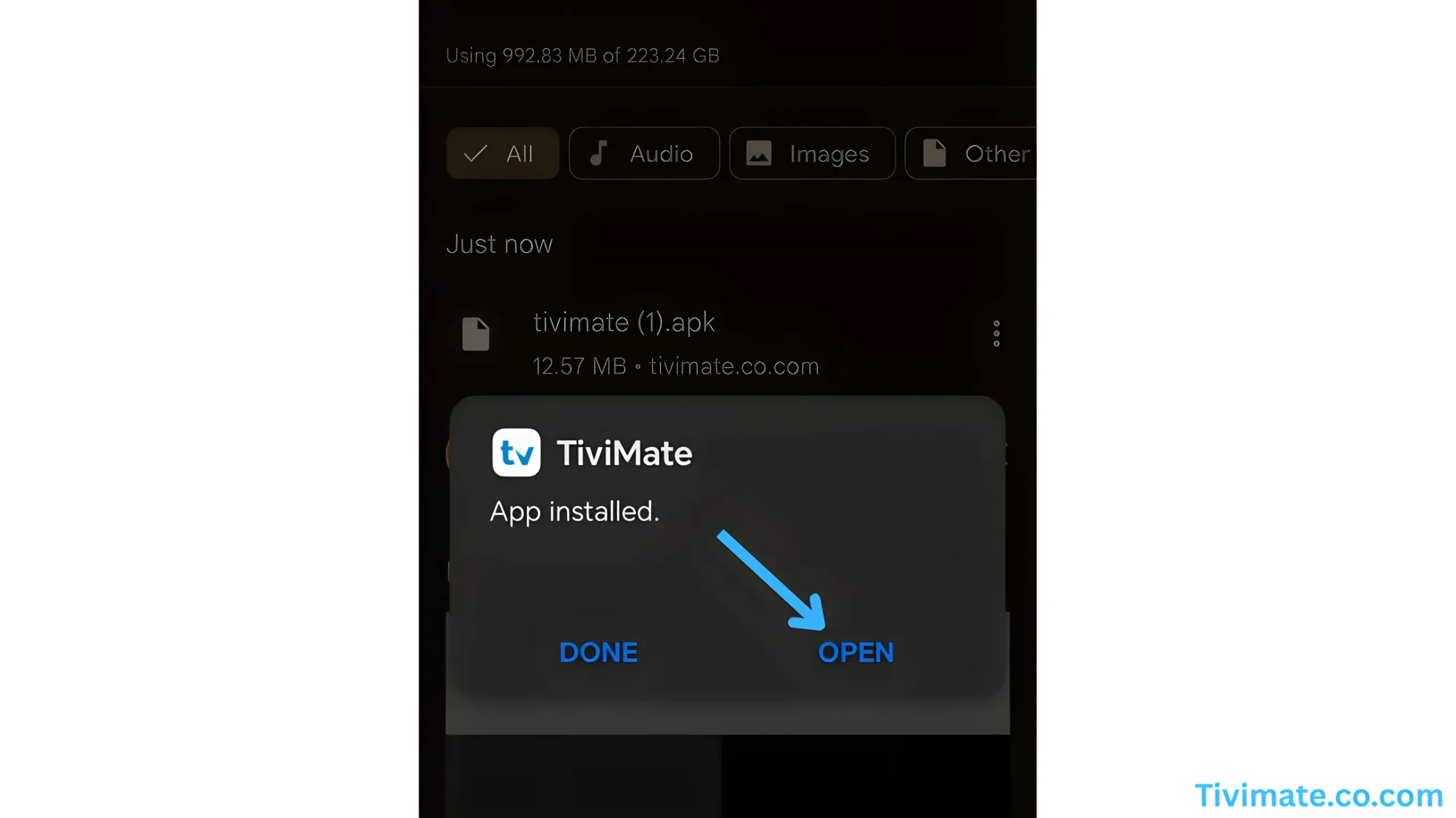
After install, tap OPEN on the App installed dialog to launch TiviMate.
-
Add playlist → Xtream Codes → enter Username, Password and Server URL from WhatsApp, then Add and open Live TV.
Method 3: Android Tablet
-
Install iMPlayer (or TiviMate if available) from Play Store — same listing as on phone.
-
Sign in with Xtream Codes exactly as on phone, then use landscape for Live TV.

IPTV app on Android: Troubleshooting
| Problem | Fix |
|---|---|
| App “not available for your device” | Use the first method (iMPlayer), which works on most phones. |
| Login error | Copy and paste details from WhatsApp. They are case-sensitive. |
| High data use | Lower the stream quality in the app settings when you are on mobile data. |
| Picture stutters | Close background apps and switch to Wi-Fi. |
Still stuck? Check your speed with Speedtest (about 15–20 Mbps for HD), read IPTV internet speed, or message our UK support on WhatsApp.
Tips for the Best IPTV app on Android Experience
Cast to your TV: many players support Chromecast. For a permanent TV setup, follow the Android TV box guide or the Firestick guide.
Best IPTV App Android Users Can Install
Choosing the right IPTV app Android phones run smoothly makes a big difference. These are the two we recommend:
| IPTV app | Best on | Why |
|---|---|---|
| iMPlayer | Phones | Available on Google Play, light and easy to use |
| TiviMate | Tablets and Android TV | Excellent TV guide and recording features |
Whichever IPTV app Android device you use, the login is the same: your SmartTVs username, password and server URL.
Set Up IPTV on Other Devices
Watching on more than one screen? See IPTV on multiple devices and compare IPTV UK subscription plans.
IPTV App Android: Frequently Asked Questions
What is the best IPTV app for Android?
iMPlayer is easy on phones; TiviMate is excellent on tablets and Android TV.
Is the IPTV app free?
The players are free or have optional upgrades. You need an IPTV subscription for channels.
How much data does IPTV use on a phone?
Roughly 1 to 3 GB per hour for HD, depending on quality. Use Wi-Fi when you can.
Can I use my phone and TV at the same time?
Yes, with a 2 or 3 device plan.
Need help with IPTV app on Android?