
An Android TV box for IPTV is one of the most flexible ways to watch: Google Play is built in, the best IPTV players run smoothly, and setup takes less than 10 minutes. This guide works on Chromecast with Google TV, Google TV Streamer, Nvidia Shield, and Sony, TCL, Hisense and Philips TVs running Android TV.
Before you start: you need an active SmartTVs login. No account yet? Start a free trial and we’ll send your details on WhatsApp.
What You Need for Android TV box for IPTV
- An Android TV / Google TV device connected to the internet
- Your SmartTVs login and player download link from WhatsApp
- A Google account signed in on the box
How to Set Up Android TV box for IPTV (Step by Step)
Follow each part in order. Every step has a real screenshot so you can check you are on the right screen.
Part 1: Install Downloader from Google Play
-
Open Google Play on your Android TV / box, search for Downloader, and select it.

-
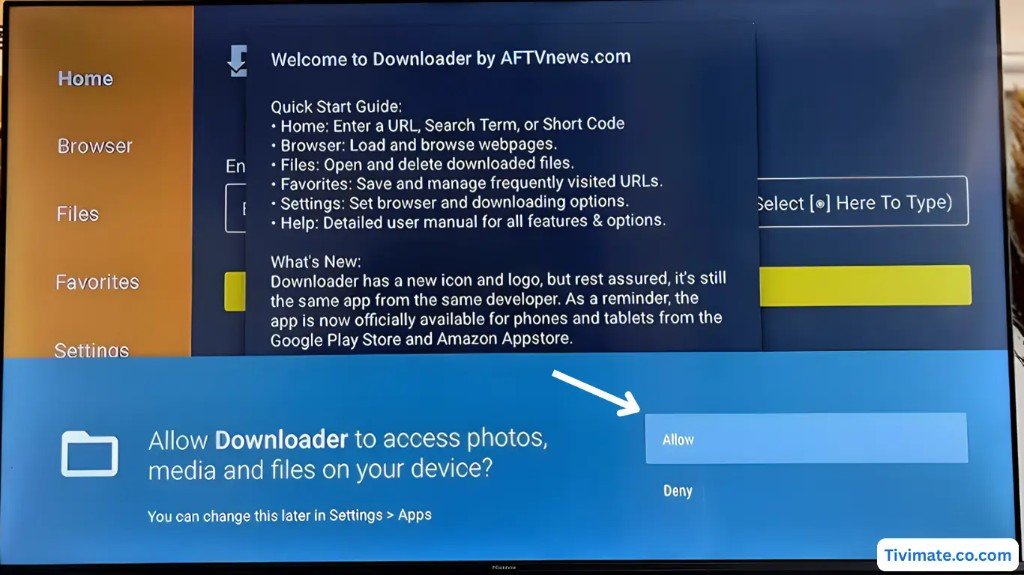
Install Downloader, open it, then press Allow for file access.
-
Dismiss the welcome message with OK.

Part 2: Download & install the player
-
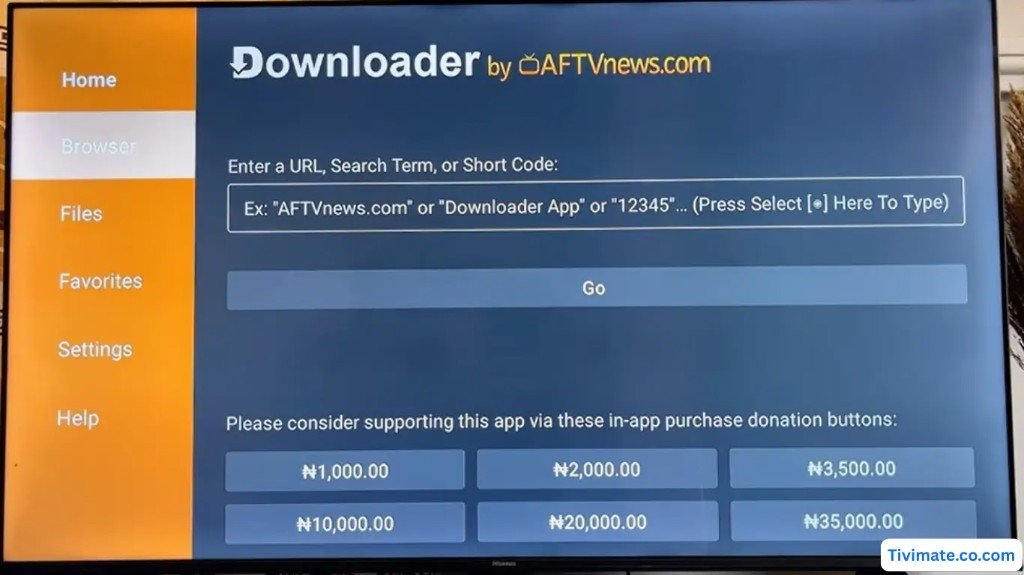
On the Downloader Home screen, select the URL / short-code box.
-
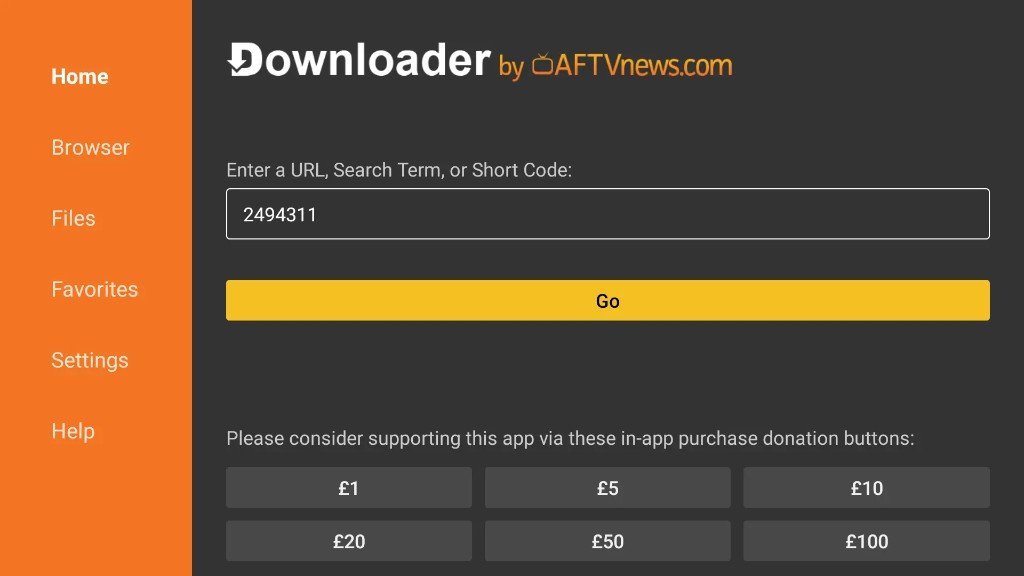
Enter the APK short code / link from SmartTVs WhatsApp, then press Go.
-
Accept the privacy / cookie notice if it appears.

-
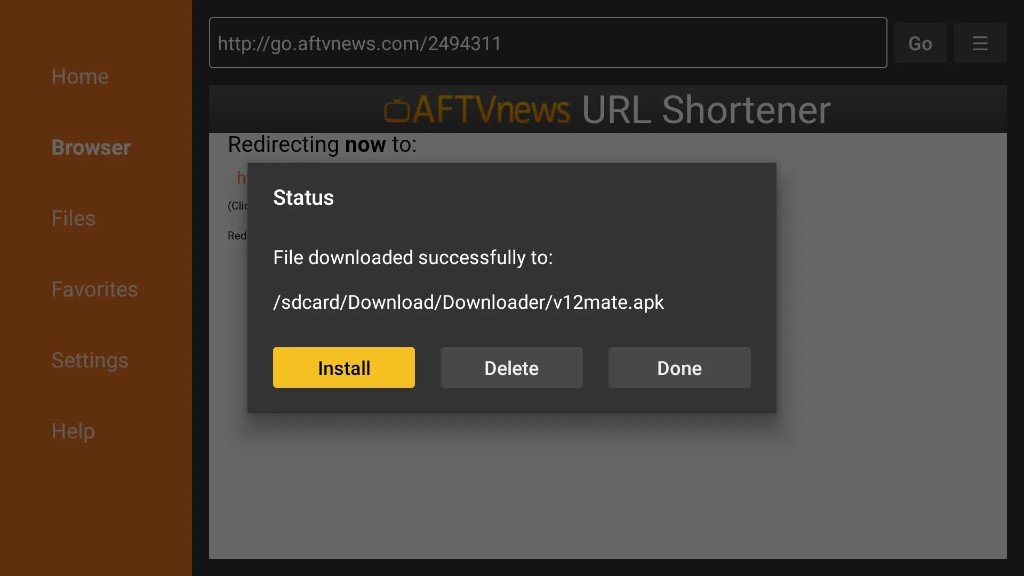
When the file downloads, press Install.
-
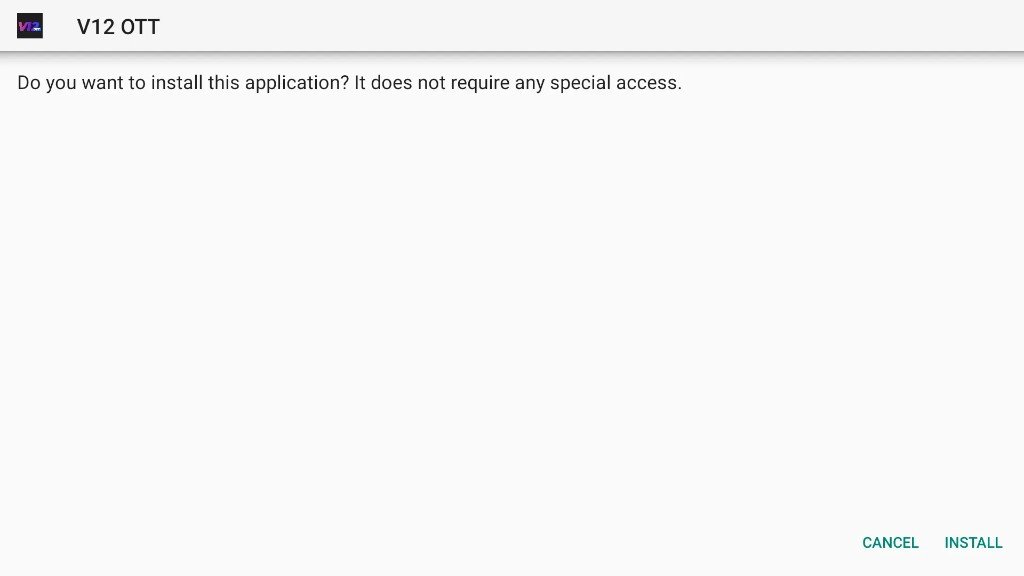
Confirm INSTALL on the system prompt.
-
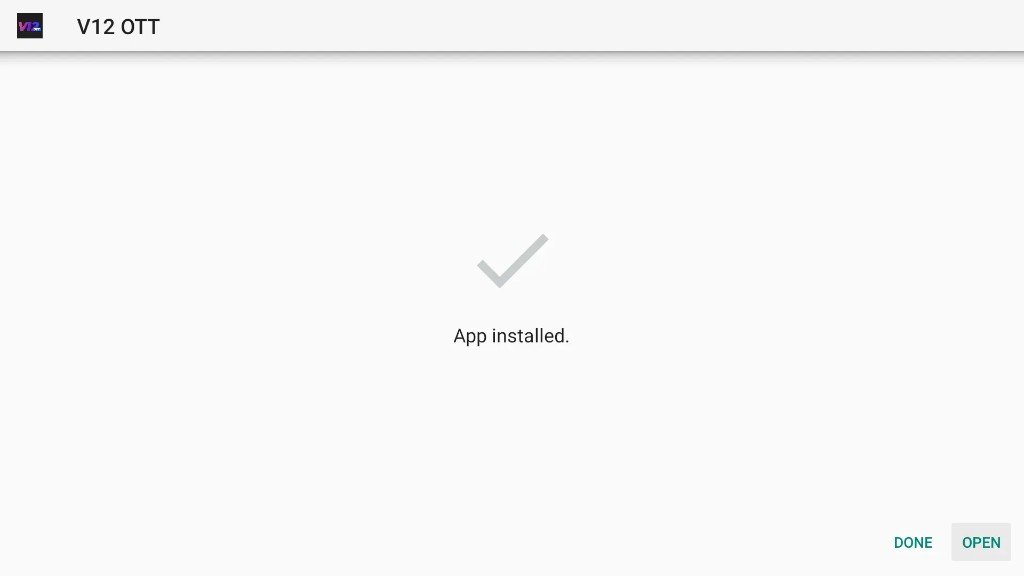
When you see App installed, press OPEN.
Part 3: Login with SmartTVs credentials
-
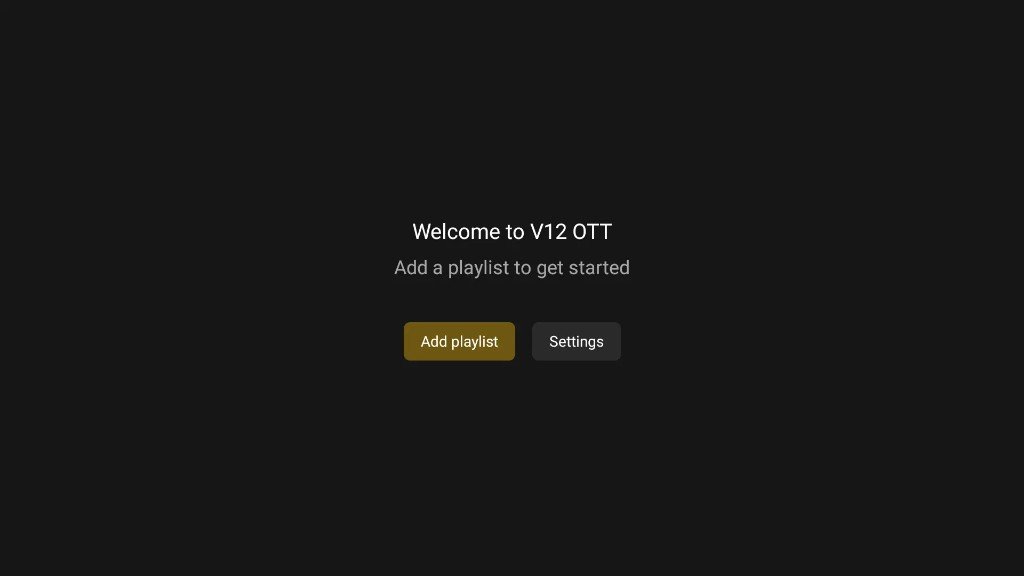
On the welcome screen, choose Add playlist.
-
Select the V12MATE / SmartTVs service option if shown.

-
Open Your Login Details and enter Username, Password and Server from WhatsApp. Keep TV channels + VOD checked.
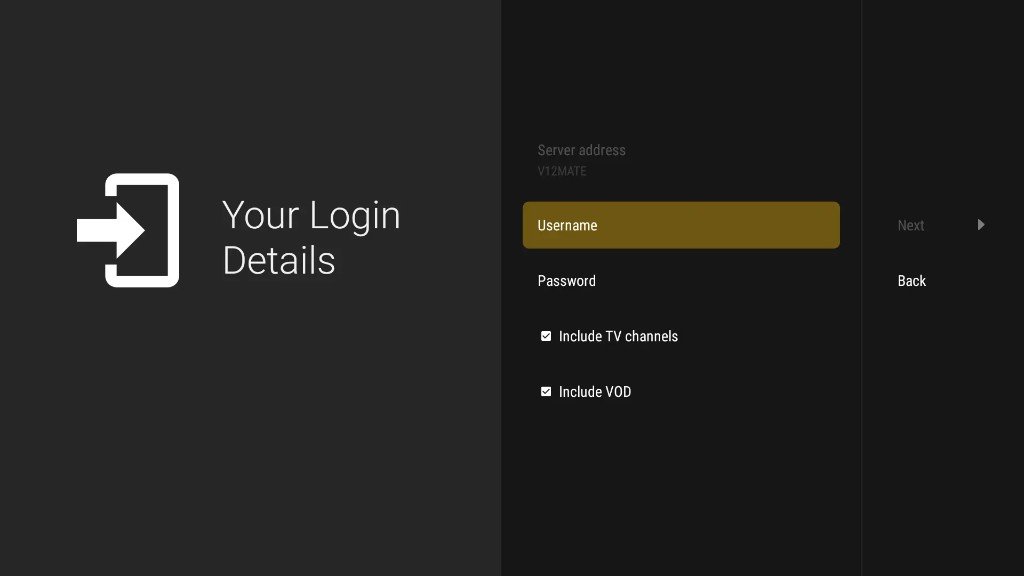
-
When details are filled, press Next.
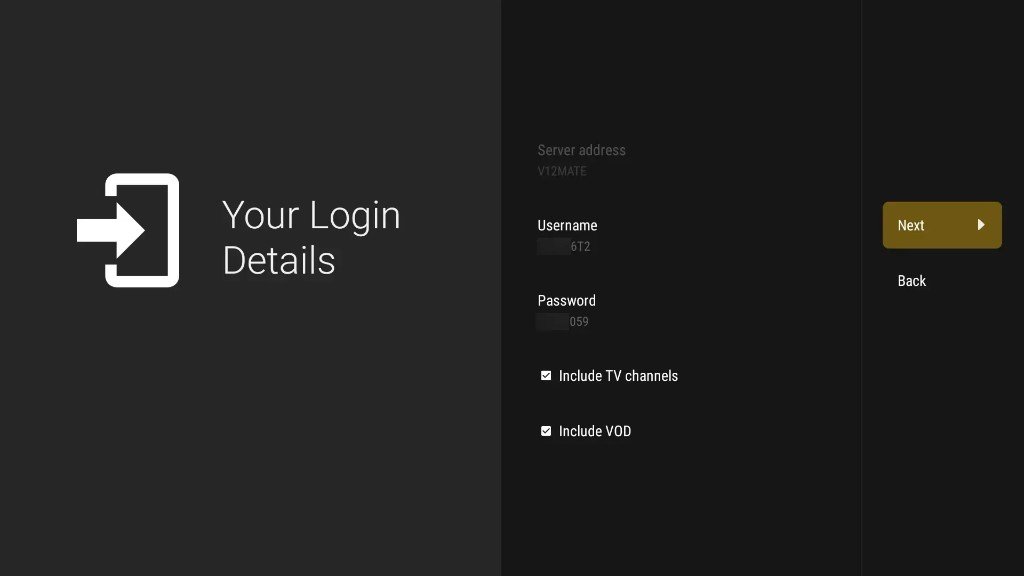
-
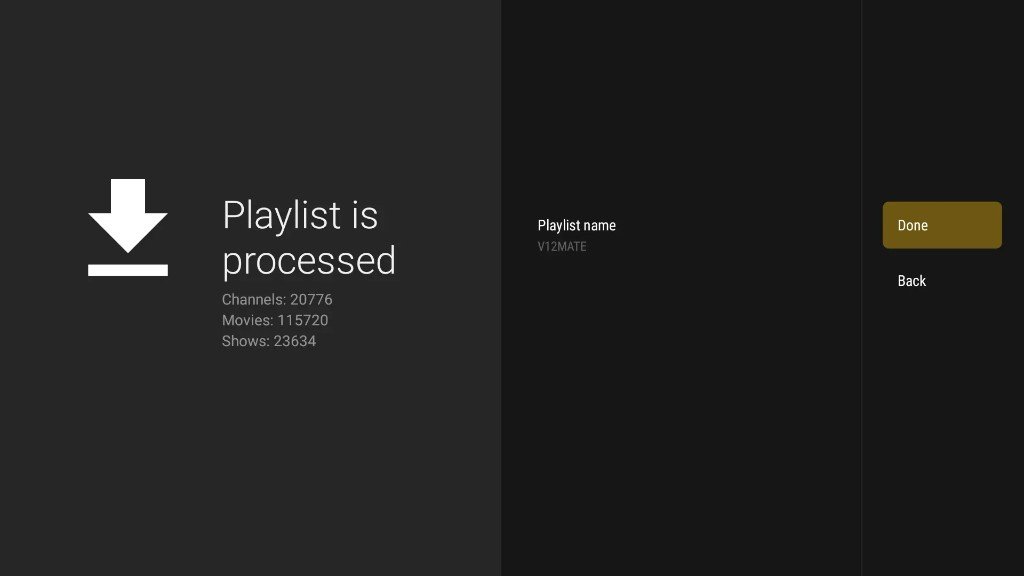
Wait while the playlist is Processing (you can set a Playlist name).

-
When you see Playlist is processed, press Done — then open Live TV.
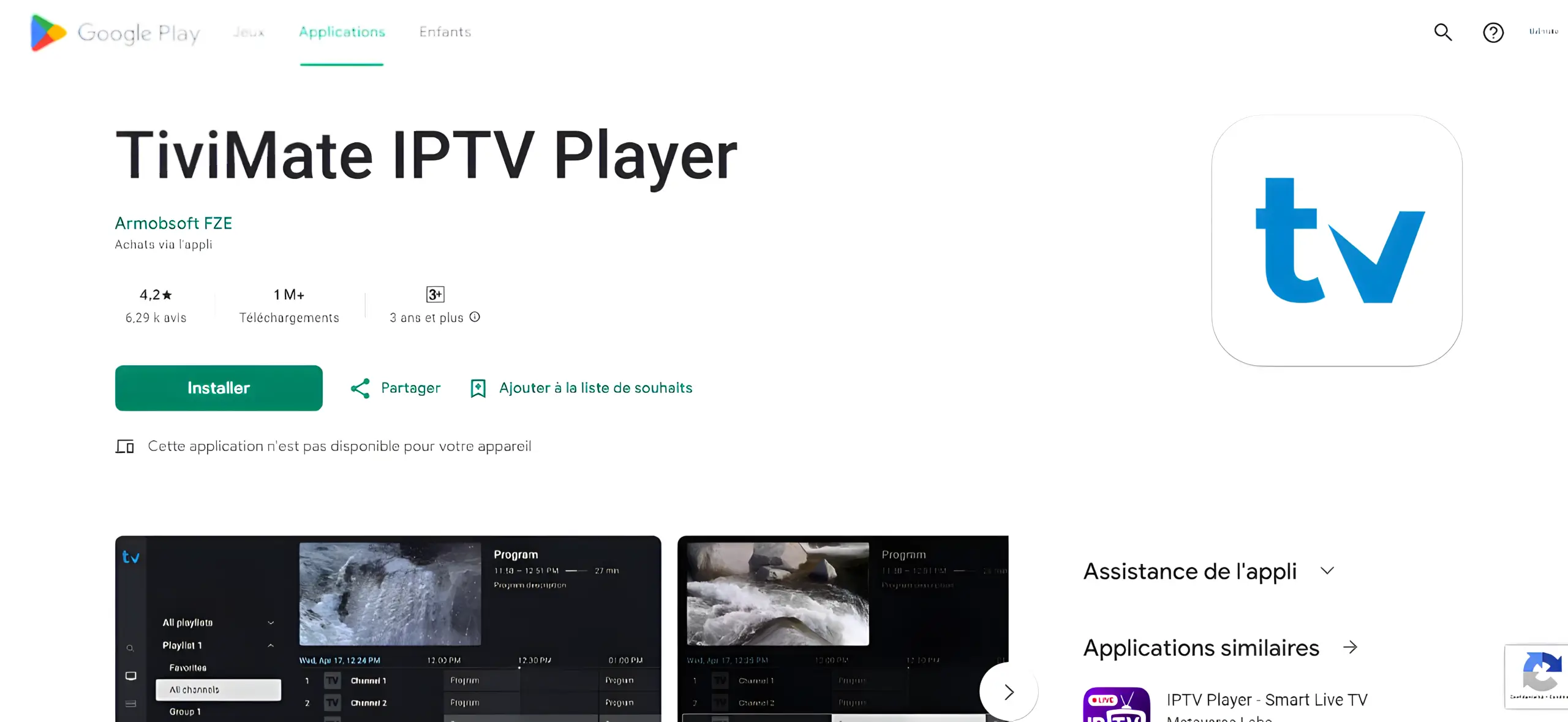
Alternative: TiviMate
-
If available, search TiviMate IPTV Player in Google Play and Install.
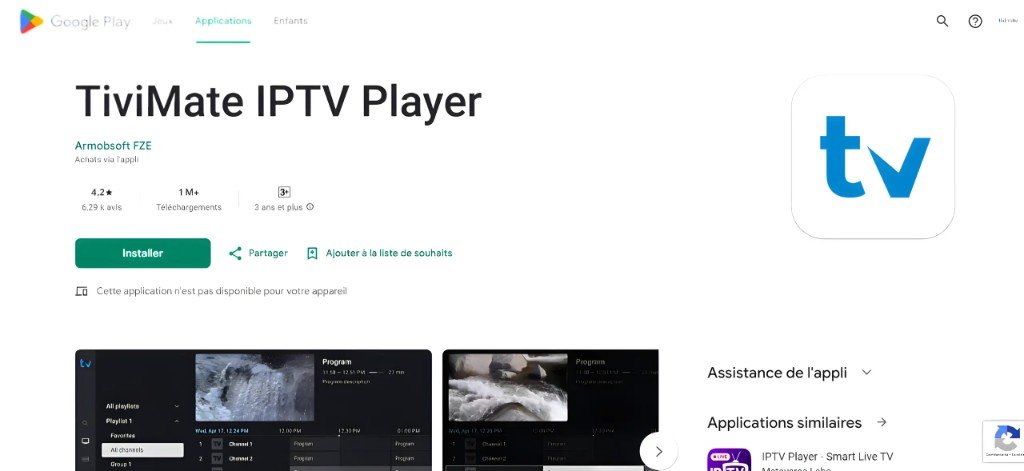
-
Open TiviMate → Add playlist → Xtream Codes → enter SmartTVs Username, Password and Server URL.
Android TV box for IPTV: Troubleshooting
| Problem | Fix |
|---|---|
| Downloader not found in Google Play | Some boxes list it as “Downloader by AFTVnews”. Update Google Play if it doesn’t appear. |
| “Install blocked” message | Go to Settings → Apps → Security → Unknown sources and allow Downloader. |
| Login error | Check the server URL includes http:// and the port, and copy details exactly from WhatsApp. |
| Buffering | Use Ethernet or 5 GHz Wi-Fi. See buffering fixes. |
Still stuck? Check your speed with Speedtest (about 15–20 Mbps for HD), read IPTV internet speed, or message our UK support on WhatsApp.
Tips for the Best Android TV box for IPTV Experience
Shopping for a box? Look for 4K HDR, at least 2 GB RAM, Ethernet and Android TV / Google TV certification. Compare devices in Chromecast and Google TV Streamer and Google TV vs Android TV.
Set Up IPTV on Other Devices
Watching on more than one screen? See IPTV on multiple devices and compare IPTV UK subscription plans.
Android TV box for IPTV: Frequently Asked Questions
What is the best Android TV box for IPTV?
A certified Google TV or Android TV device with 4K, at least 2 GB RAM and Ethernet, such as Nvidia Shield or Chromecast with Google TV, gives the smoothest experience.
Can I install IPTV apps from Google Play?
Yes. Downloader is on Google Play, and some players are available there too. SmartTVs sends the recommended player link.
Do Android TV boxes need a subscription?
The box is a one-off purchase. You need an IPTV subscription to watch channels.
Is an Android box better than a Firestick for IPTV?
Both work well. Android TV boxes give you Google Play and often Ethernet; Firesticks are cheaper and smaller.
Need help with Android TV box for IPTV?