
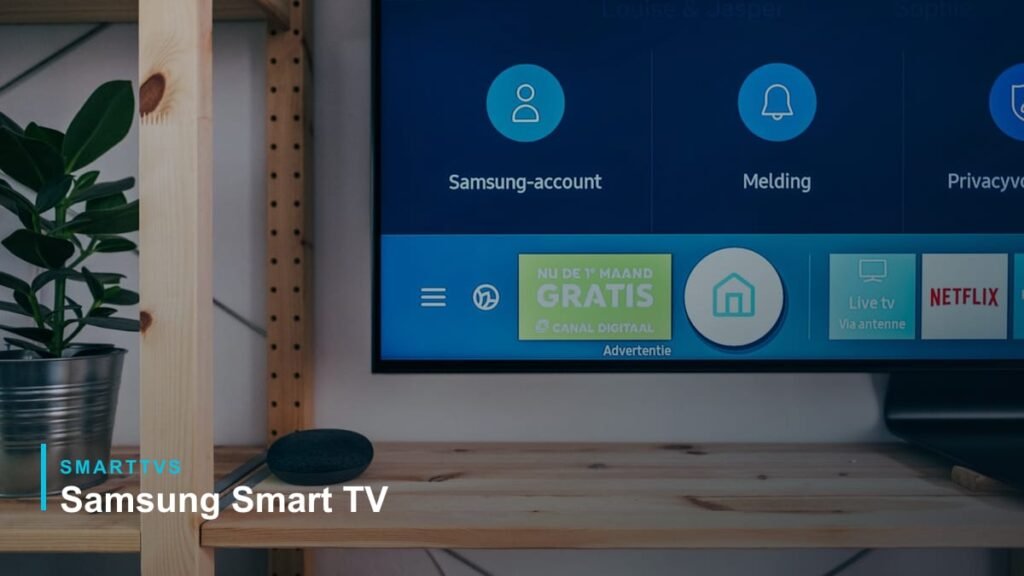
Short answer: on a Samsung smart TV, press Home, go to Apps, search for the app and select Install. Most UK apps — BBC iPlayer, ITVX, Channel 4, 5, Netflix, Prime Video, Disney+, NOW and YouTube — are available, though support depends on your TV’s model year.
How to install apps on a Samsung smart TV
- Connect the TV to the internet.
- Press the Home button on the remote.
- Open Apps (you may need to sign in with a Samsung account).
- Use the search icon to find the app.
- Select Install, then Open.
- Optionally choose Add to Home for quick access.
Samsung smart TVs from 2015 onwards run Samsung’s Tizen operating system. Menus have been redesigned several times since, so on older sets Apps may sit in the Smart Hub bar rather than the Home menu, and the newest app versions may need a recent model or software update.
How to delete or move apps
Go to Apps, open the settings (cog) icon, choose the app and select Delete, Move or Lock. The exact menu names vary slightly between model years.
Popular UK apps on Samsung TVs
- BBC iPlayer, ITVX, Channel 4, 5, U, STV Player
- Netflix, Prime Video, Disney+, Apple TV, NOW, Paramount+
- YouTube, Spotify
- Samsung TV Plus — free streaming channels built in
App missing or not working?
- Install the latest software: Settings → Support → Software Update.
- Clear the app’s cache or reinstall it. On most 2020 and later models: Settings → Support → Device Care → Manage Storage, select the app, then View Details → Clear Cache.
- If several apps fail or the Apps screen will not load, reset Smart Hub: Settings → Support → Device Care → Self Diagnosis → Reset Smart Hub (PIN 0000 unless you changed it). This removes downloaded apps and signs you out of them, so try it last.
- UK apps such as BBC iPlayer only appear when the TV is set up for the UK; a TV bought abroad may show a different app list.
- Check your broadband — see what speed you need.
- Older Samsung TVs may lose support for some apps; a streaming stick fixes this.
Using IPTV on a Samsung Smart TV
Samsung TVs can only install apps from the Samsung store, so to watch an IPTV or other streaming service you need a compatible player app that is listed there for your model. Which players appear depends on the model year and the region the TV is set to; newer Tizen models usually list more third-party players than older ones. If the app you need is not available, a streaming stick or box on a spare HDMI port is the usual workaround, because those platforms have larger app stores — see our Fire TV Stick guide. Only install apps from the official store, and only use services you have the right to watch. Third-party player apps are made by independent developers and are not affiliated with SmartTVs.
FAQ
Can I install apps from outside the Samsung store?
No — Samsung TVs only install apps from the official store, which also keeps the TV safer.
Do I need a Samsung account?
Some features and app installs ask you to sign in. It is free to create.
More help: common smart TV problems.